.png)

Image Source/Getty Images
- You can schedule a post on Facebook for a page or group you manage on a desktop or mobile device.
- It's easy to stay on top of your content calendar by scheduling Facebook posts ahead of time.
- Unfortunately, you can't schedule a post from a personal profile.
- Visit Insider's Tech Reference library for more stories.
Creating a content calendar for your Facebook page or group can help you maintain a consistent voice and posting schedule. And lining up your posts ahead of time will save you the stress of posting in real time.
Here's how to schedule a post on Facebook, keep track of what you schedule, and edit posts after they're published.
How to schedule a post on a Facebook page
To schedule a post from a Facebook page, you must be a manager of the page. Here's how to do it on the Facebook website and the Facebook Business Suite mobile app.
From the Facebook website on a desktop browser:
1. Go to the Facebook website and log in to your account.
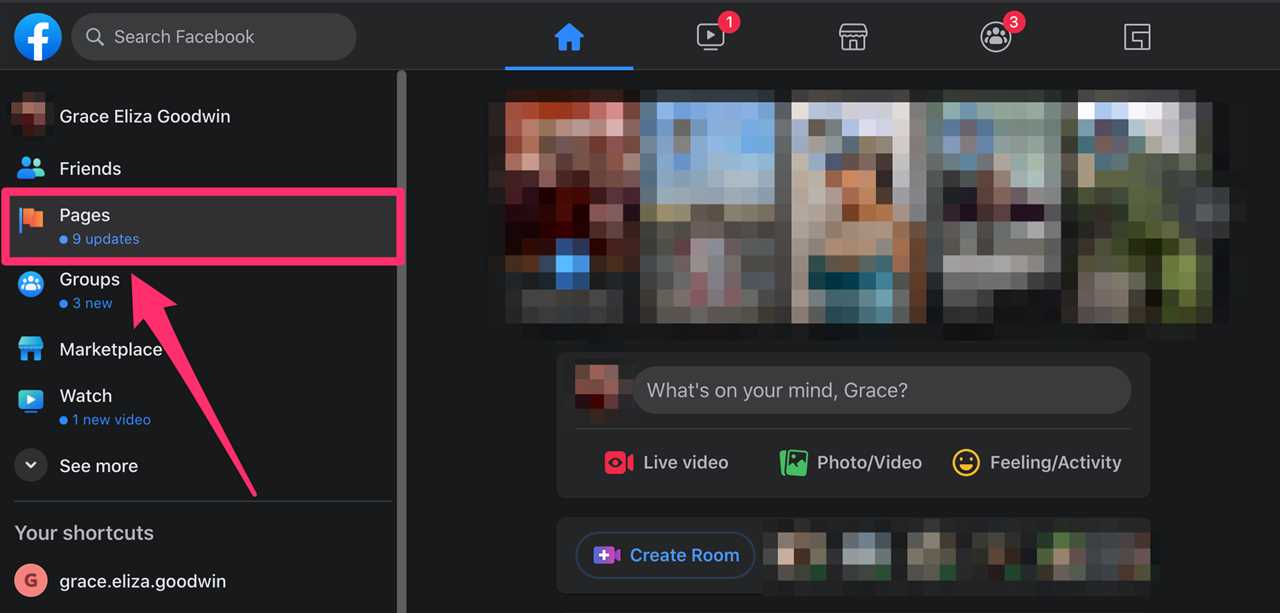
2. From the Facebook homepage, click Pages in the sidebar menu on the left.
Grace Eliza Goodwin/Insider
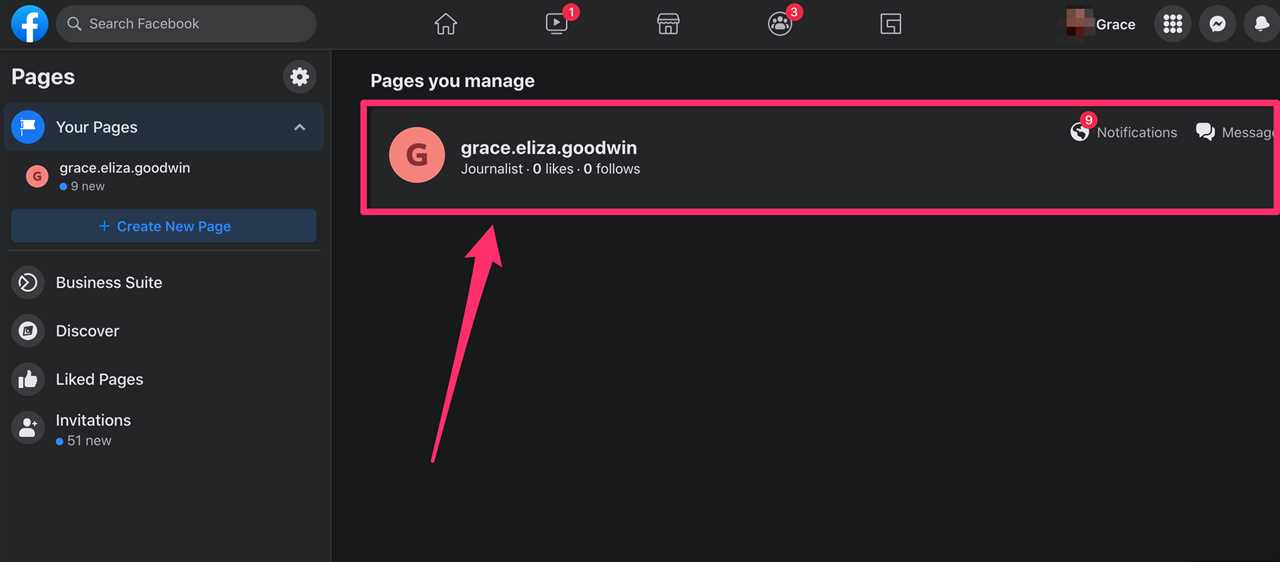
3. Under Pages you manage, click the page you want to post in.
Grace Eliza Goodwin/Insider
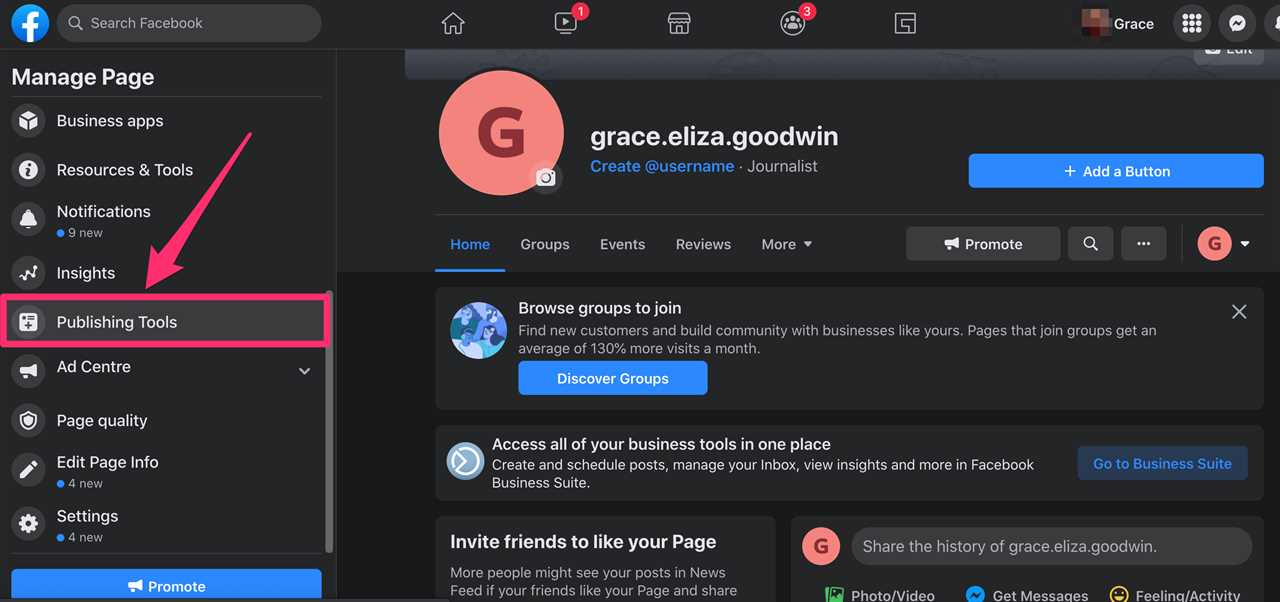
4. Once on your page, scroll down in the sidebar menu on the left and click Publishing Tools. You'll be taken to the Facebook Business Suite site.
Grace Eliza Goodwin/Insider
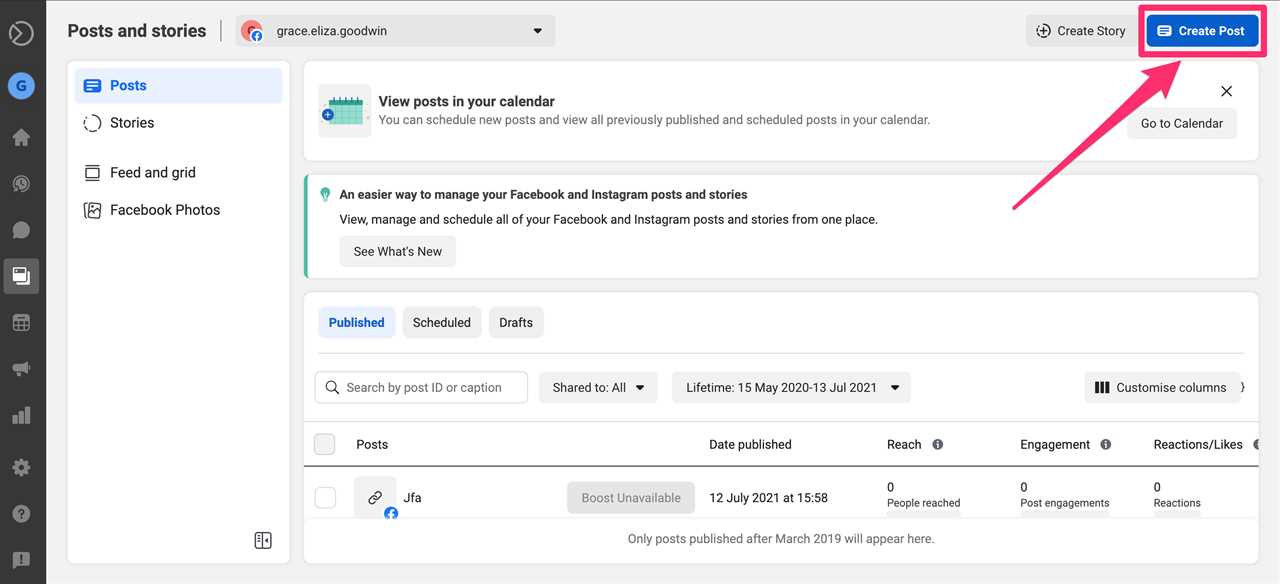
5. In the top-right corner of Facebook Business Suite, click Create Post.
Grace Eliza Goodwin/Insider
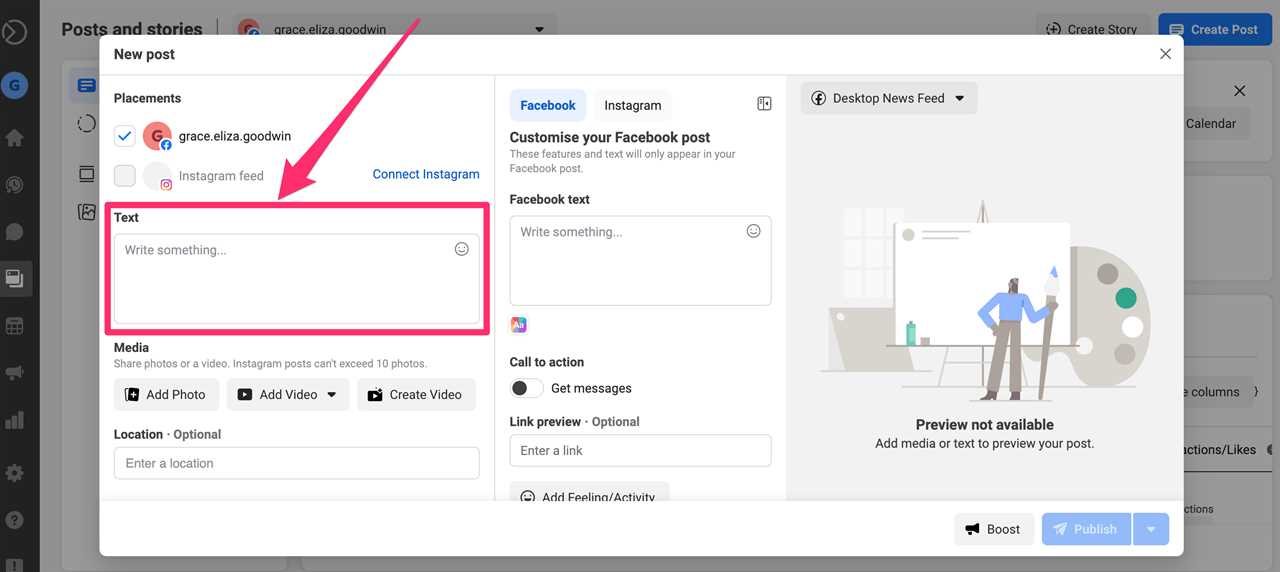
6. On the left side of the pop-up, type your post in the Text field.
Grace Eliza Goodwin/Insider
7. Underneath the Text field, you can also add media or a location.
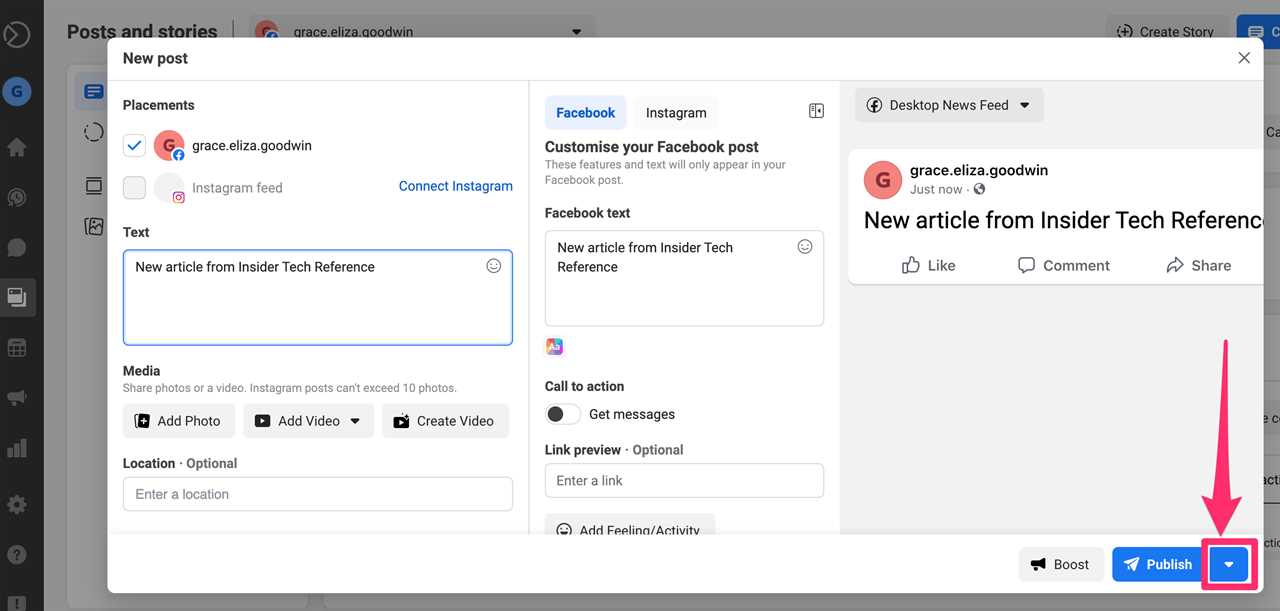
8. Once you've finished creating your post, click the blue downward-facing arrow next to the blue Publish button in the bottom-right corner of the window.
Quick tip: In the Placements section in the top-left of the New post pop-up, you can also choose to post on your Instagram account simultaneously, and you can write separate text for Instagram.
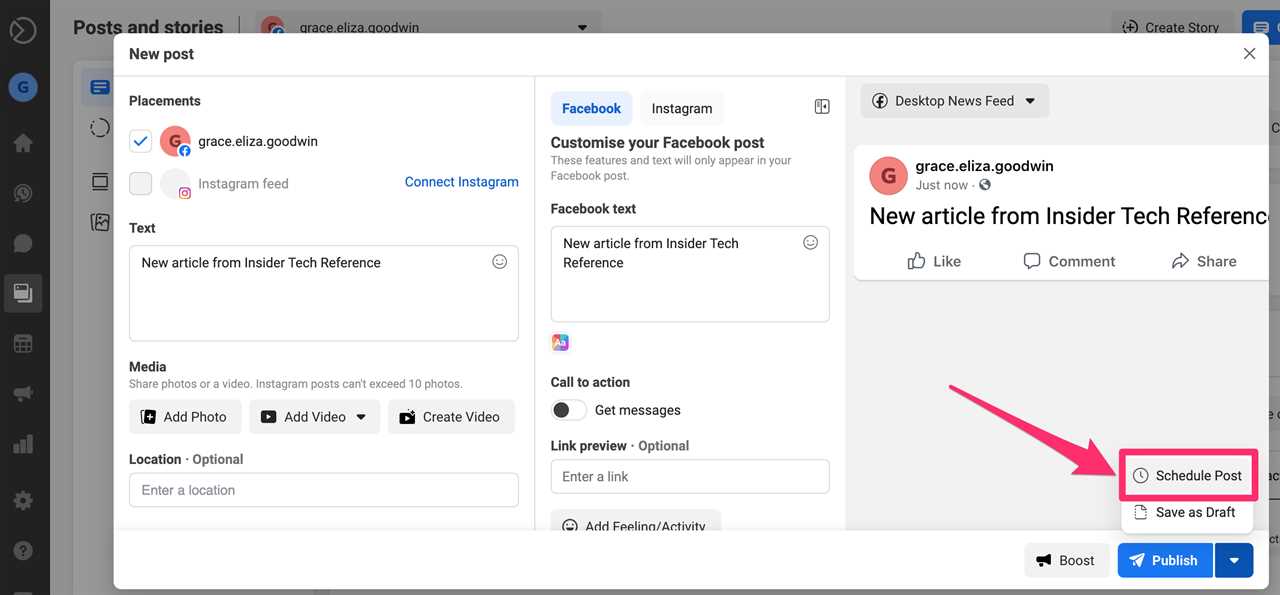
9. Click Schedule Post in the pop-up.
Grace Eliza Goodwin/Insider
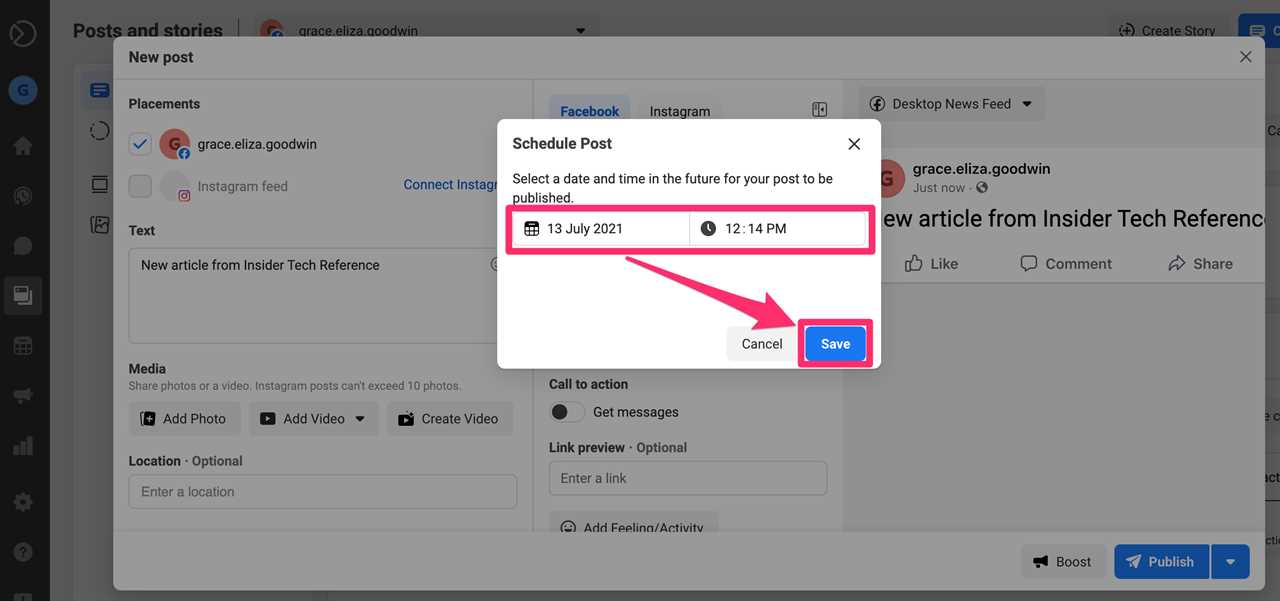
10. In the small pop-up window, select a date and time for your scheduled post and hit Save.
Grace Eliza Goodwin/Insider
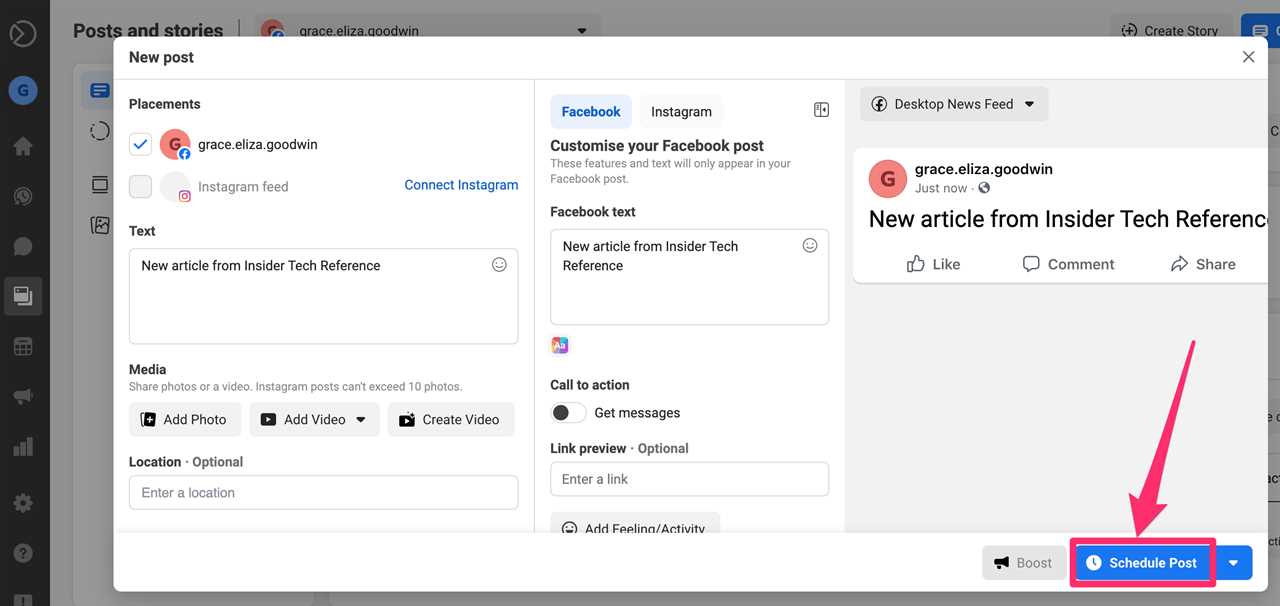
11. Click Schedule Post in the bottom-right corner of the window, and your post will be automatically published at the date and time you chose.
Grace Eliza Goodwin/Insider
From the Posts page of the Facebook Business Suite, you can see your scheduled posts by clicking the Scheduled tab in the center of the page. To edit a scheduled post, click on it and click the icon of three horizontal dots beside the post details.
From the Facebook Business Suite mobile app:
1. Download the Facebook Business Suite app (formerly known as Pages Manager) for iPhone/iPad or Android, and log in to your account.
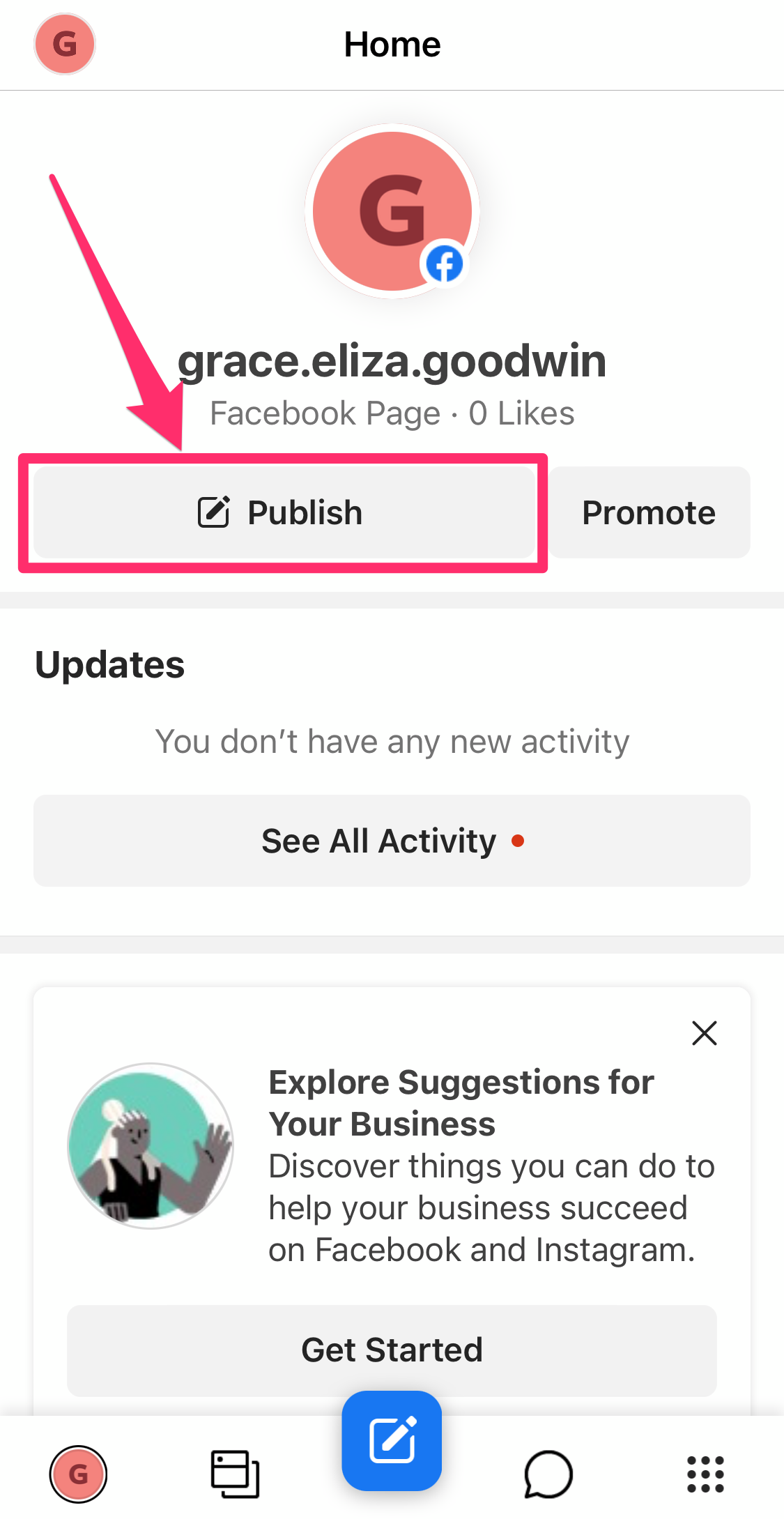
2. From the Home tab on the app, tap Publish at the top of the page under your page name.
Grace Eliza Goodwin/Insider
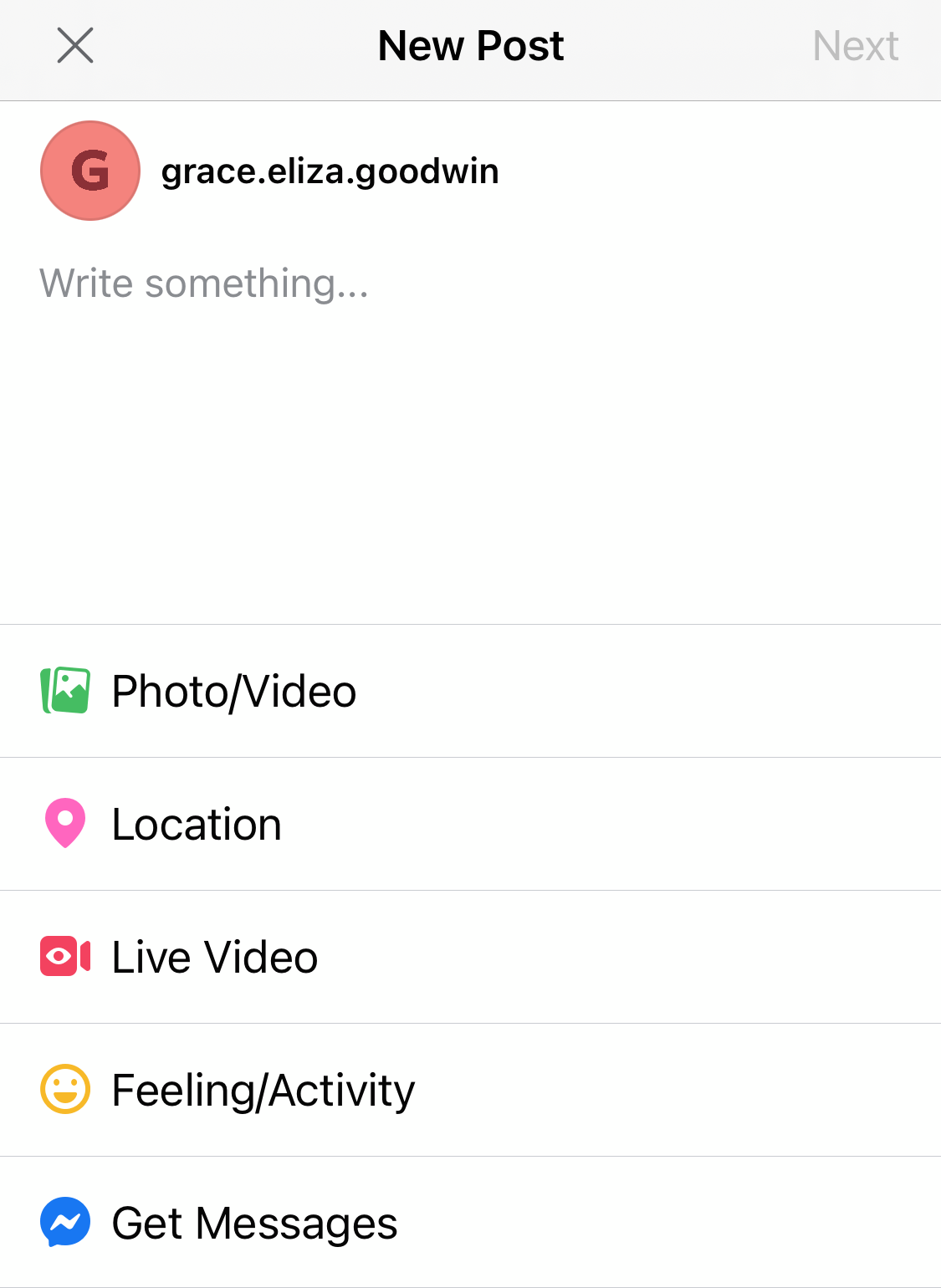
3. Write your post's text in the Write something… section. If you wish, you can customize your post at the bottom by selecting Photo/Video, Location, Live Video, Feeling/Activity, or Get Messages.
Grace Eliza Goodwin/Insider
4. Once you've written and customized your post, tap Next in the top-right corner.
5. At the top of the Review page, tap Scheduling Options.
Grace Eliza Goodwin/Insider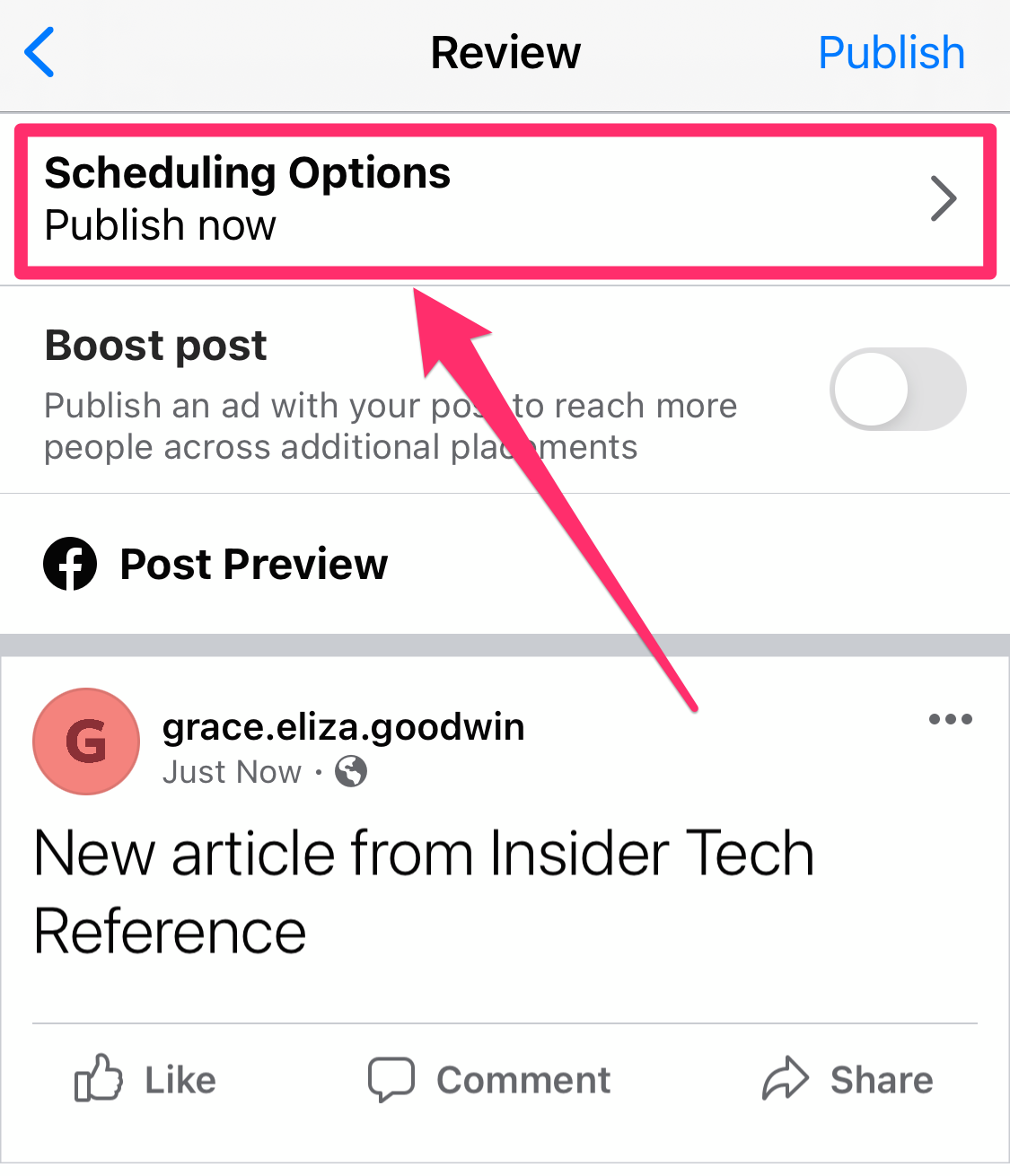
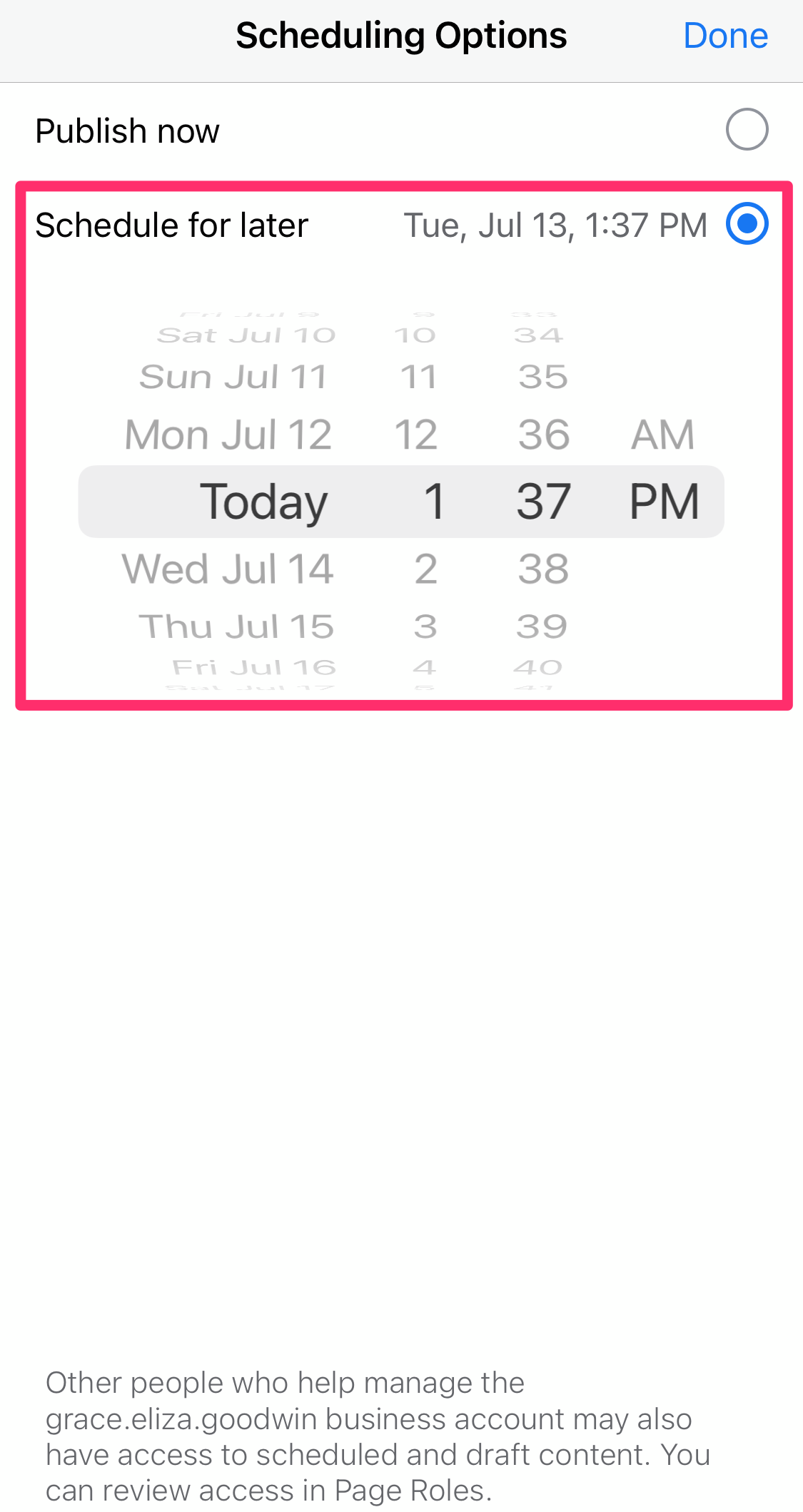
Grace Eliza Goodwin/Insider
7. Review the details of your scheduled post and tap Schedule in the top-right corner.
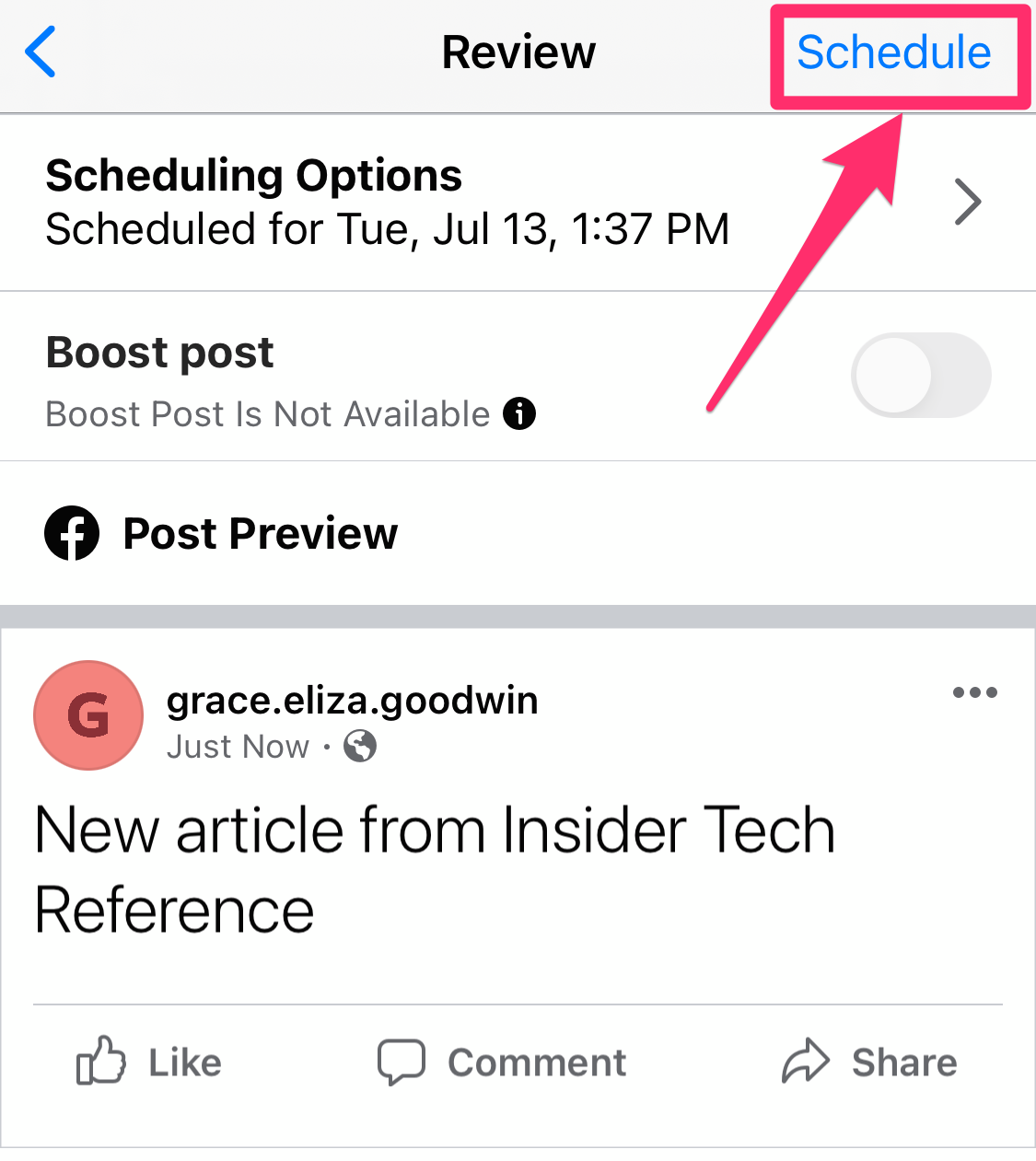
Grace Eliza Goodwin/Insider
From the Posts page, you can see your scheduled posts by tapping the Scheduled tab in the top of the page. To edit a scheduled post, tap the icon of three vertical dots beside the post details.
How to schedule a post on a Facebook group
To schedule a post on a Facebook group, you must be a manager of the group. Here's how to do it on the Facebook website and the Facebook mobile app.
From the Facebook website on a desktop browser:
1. Go to the Facebook website and log in to your account.
2. From the Facebook homepage, click Groups in the sidebar menu on the left.
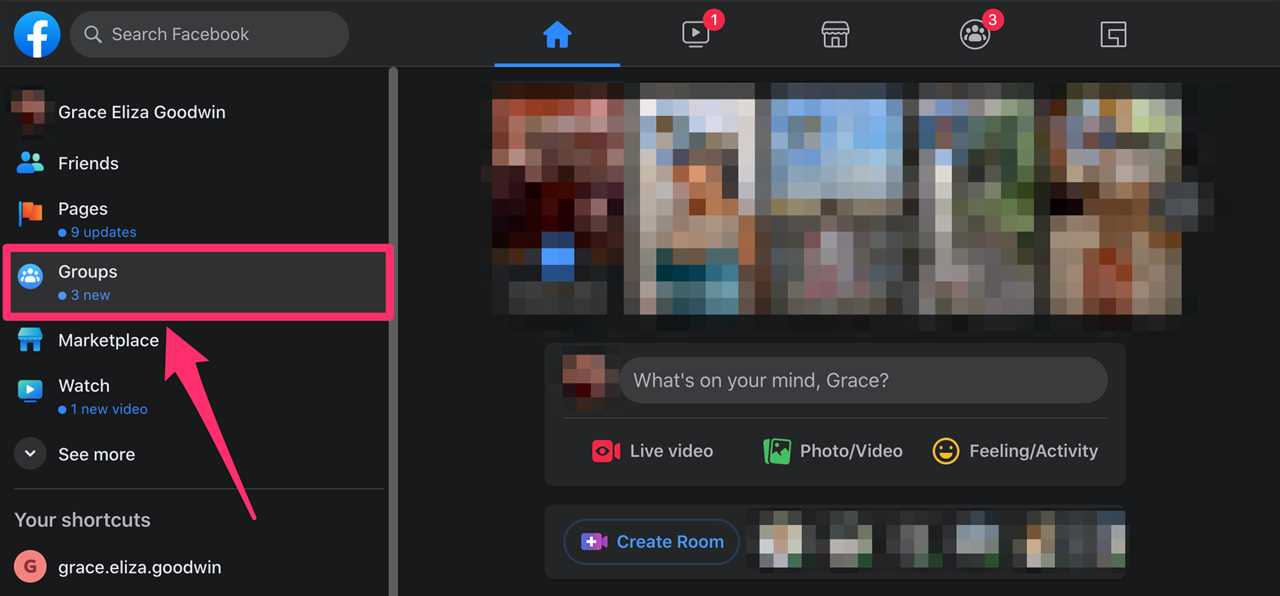
Grace Eliza Goodwin/Insider
3. Under Groups you manage in the sidebar menu on the left, click the group you want to post in.

Grace Eliza Goodwin/Insider
4. From your group's homepage, click the What's on your mind? textbox.
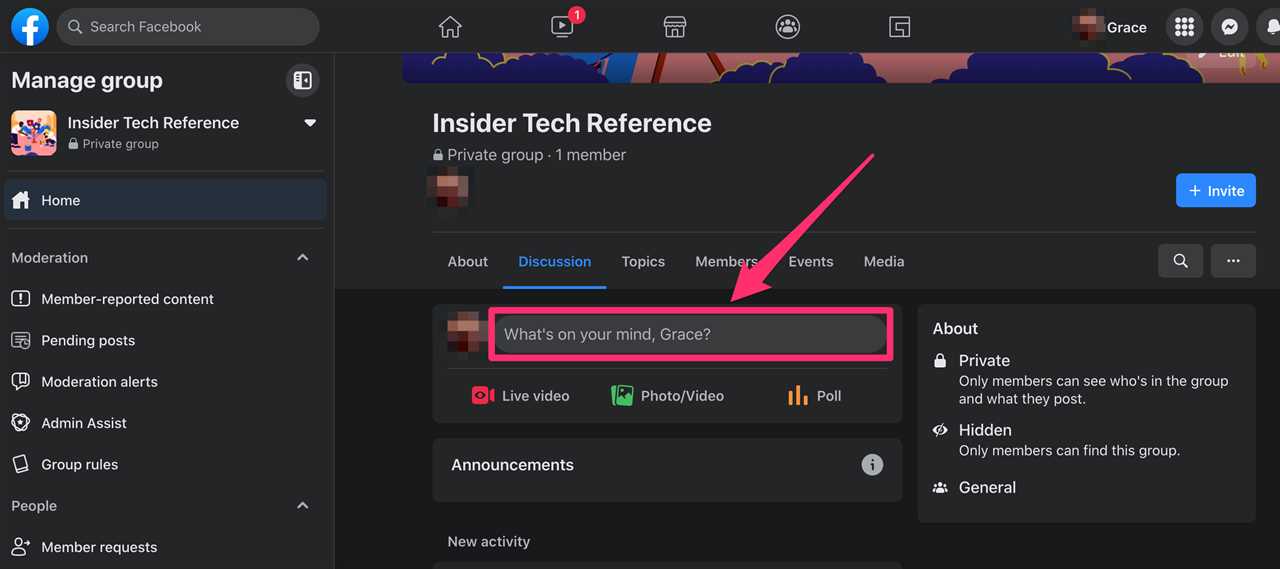
Grace Eliza Goodwin/Insider
5. In the Create post pop-up window, write your post's text in the Write something… section. If you wish, you can customize your post with photos, videos, and more by selecting an option in the Add to your post section.
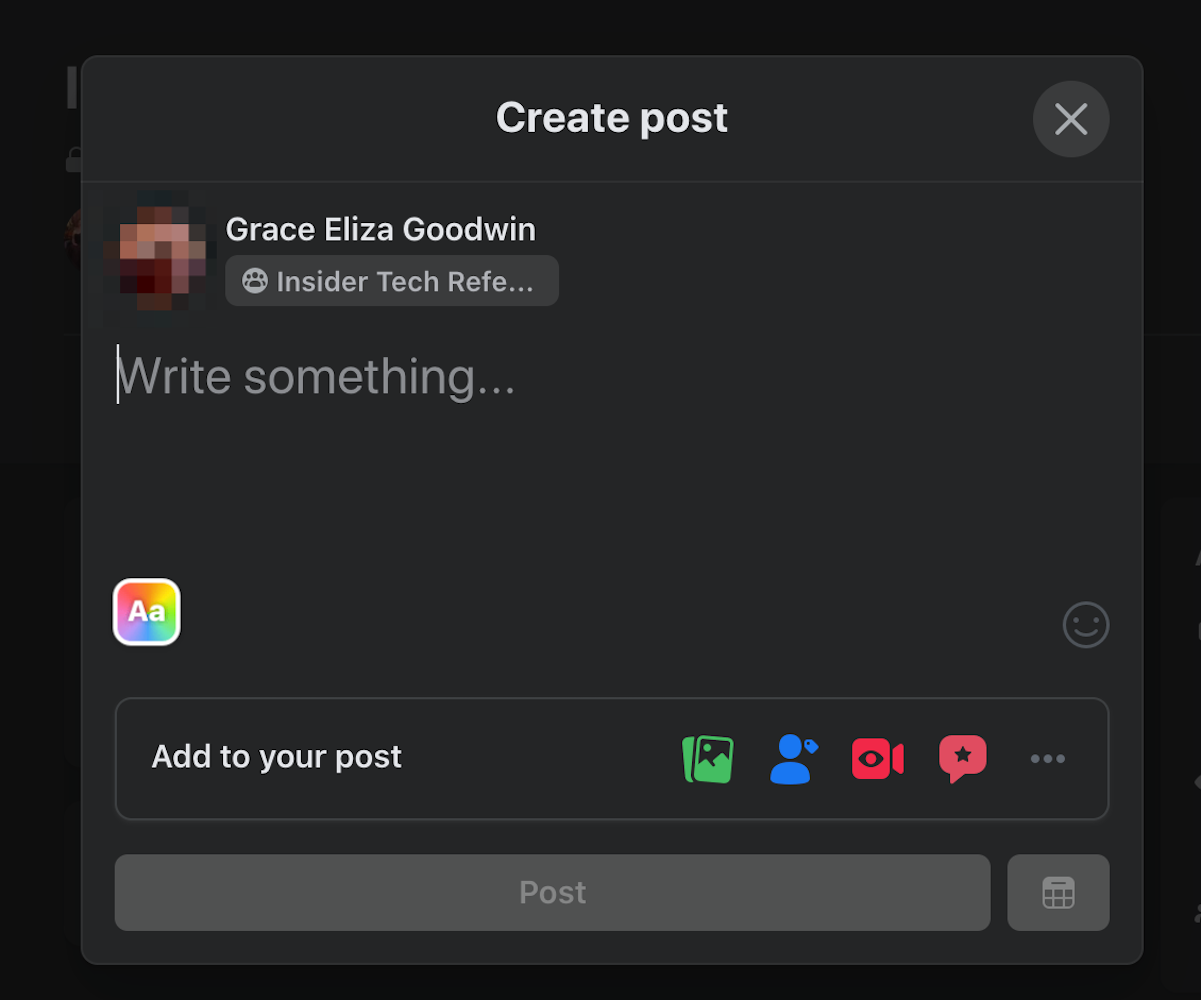
Grace Eliza Goodwin/Insider
6. Once you've written and customized your post, click the calendar icon in the bottom-right corner of the window next to the blue Post button.
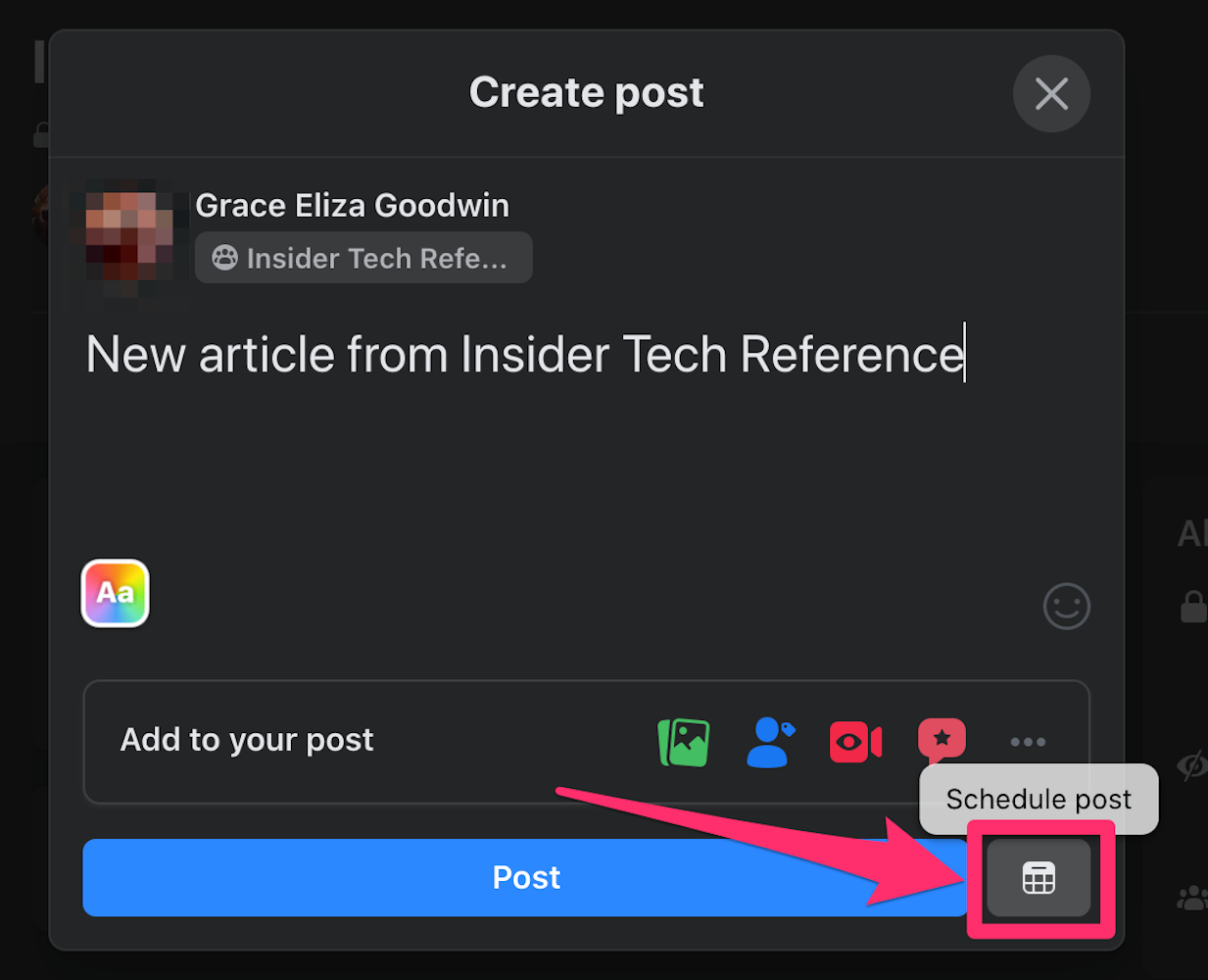
Grace Eliza Goodwin/Insider
7. Choose a date and time and hit Schedule.
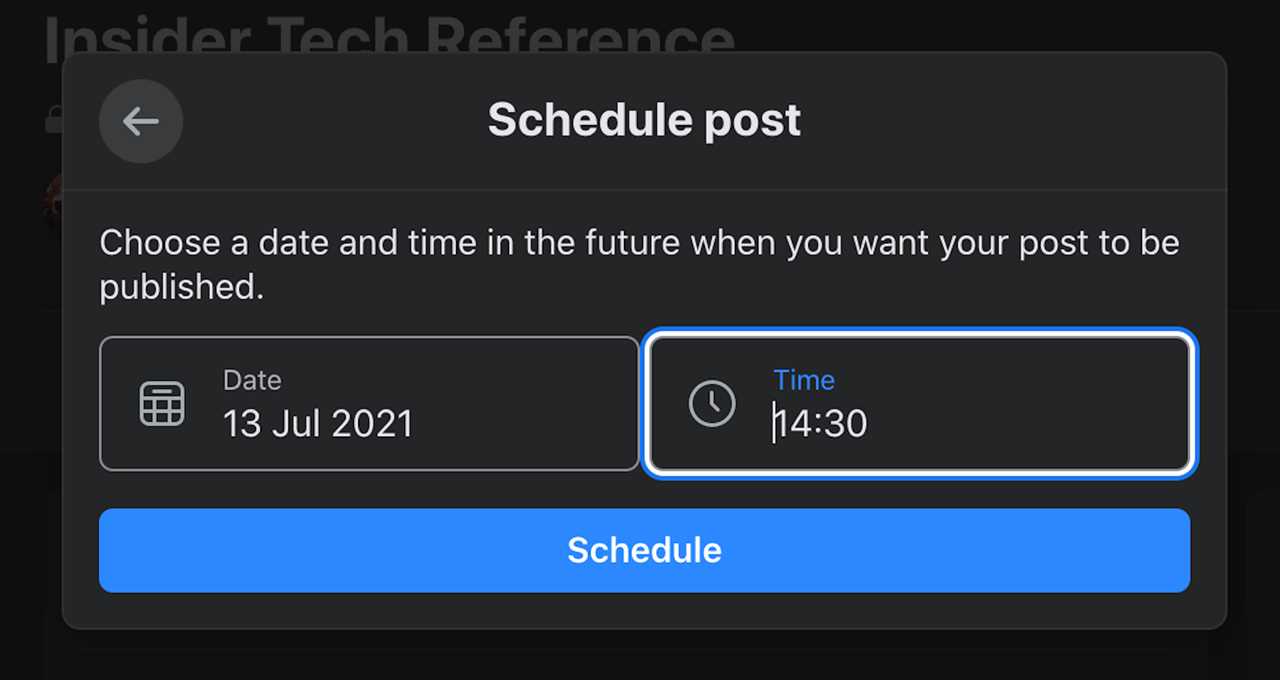
Grace Eliza Goodwin/Insider
To view and edit your scheduled post, scroll down to the bottom of the sidebar menu on the left and click Scheduled posts, then click the icon of three horizontal dots beside your scheduled post to edit or delete your post.
From the Facebook mobile app:
1. Open the Facebook mobile app on your iPhone/iPad or Android.
2. From the app homepage, tap the icon of three horizontal lines, located in the bottom-right corner on iPhone/iPad and in the top-right corner on Android.
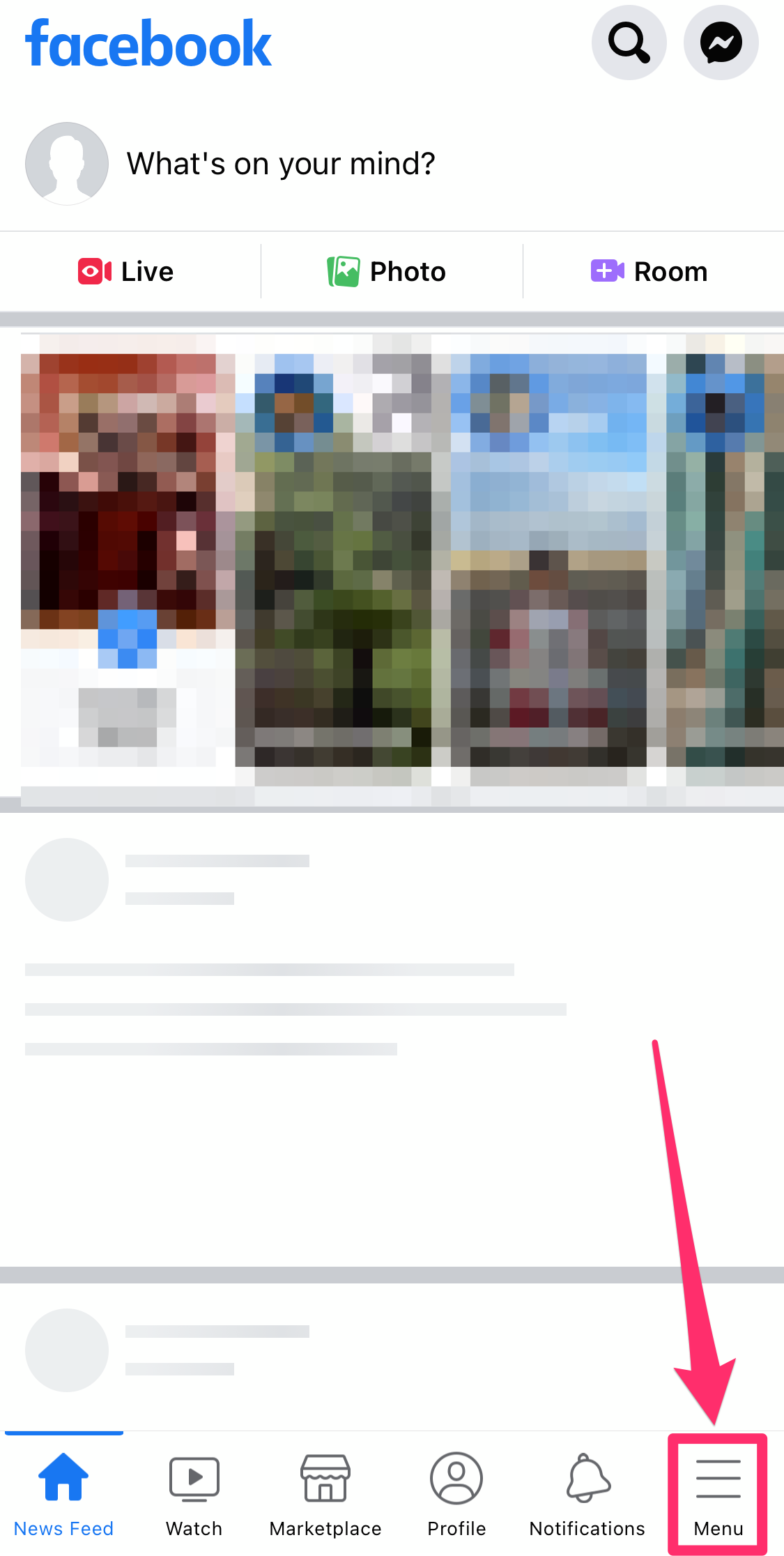
Grace Eliza Goodwin/Insider
3. Select Groups from the menu.
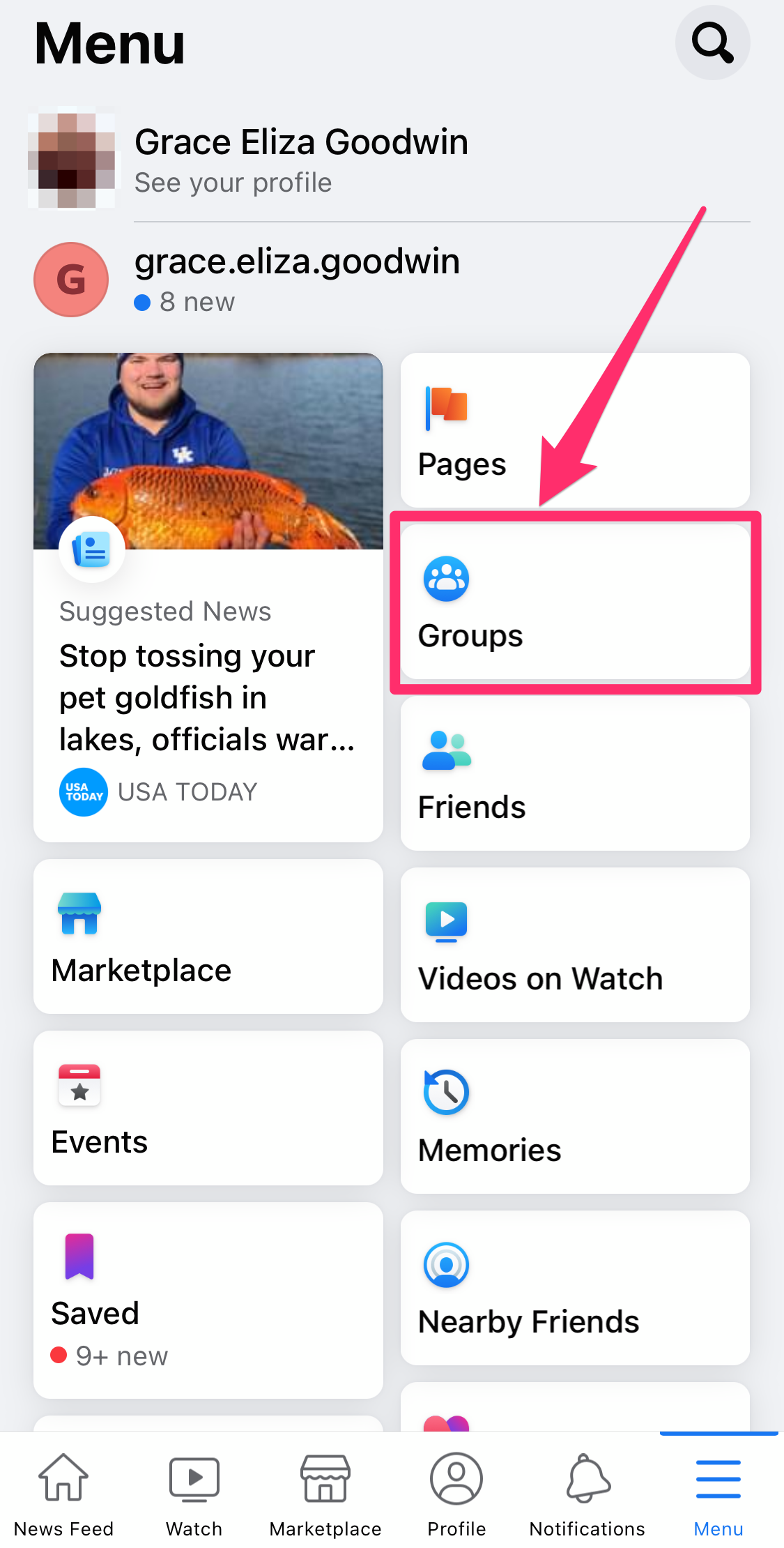
Grace Eliza Goodwin/Insider
4. At the top of the Groups page, select Your Groups.
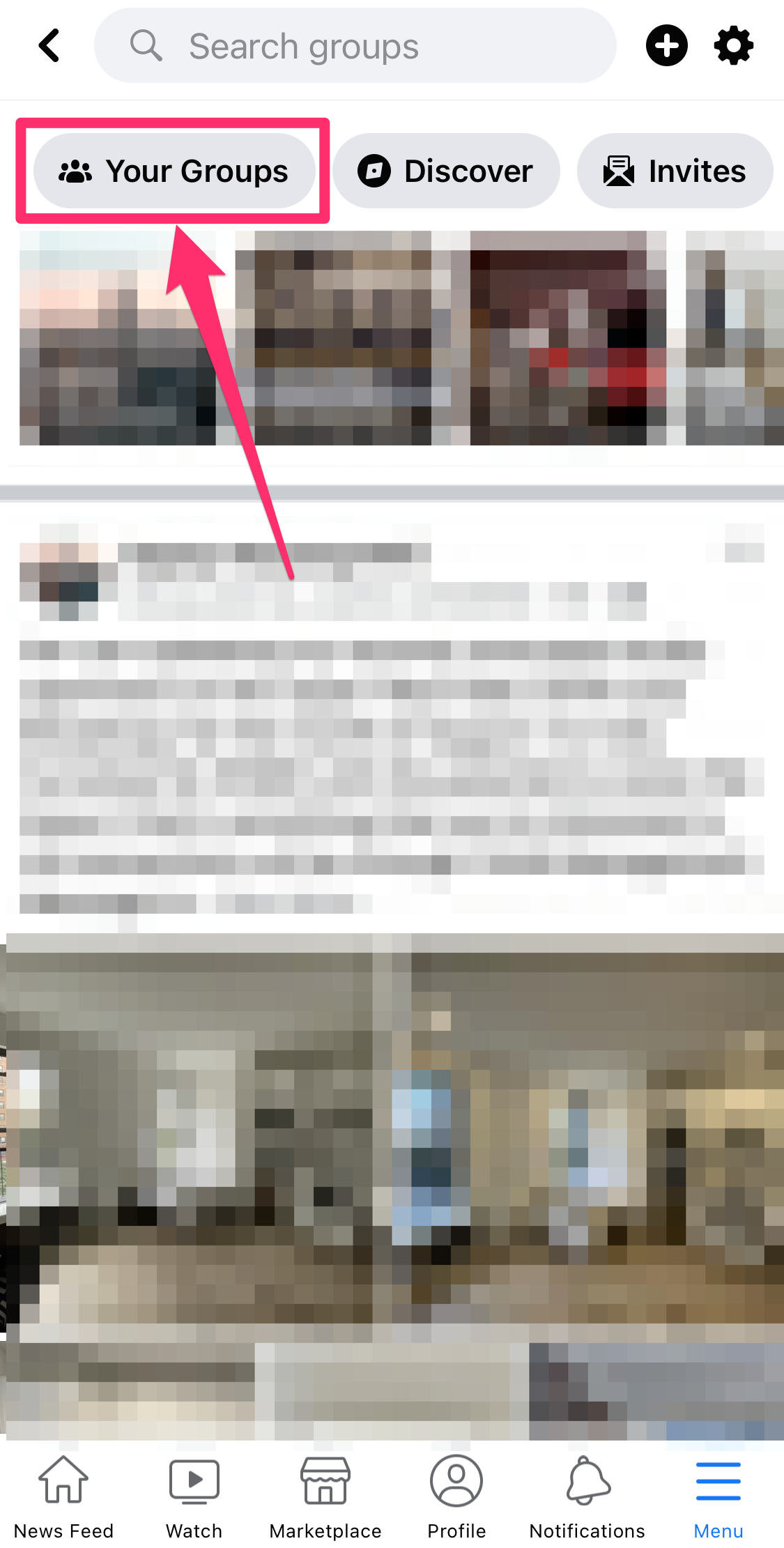
Grace Eliza Goodwin/Insider
5. Under Groups You Manage, select the group you want to post in.
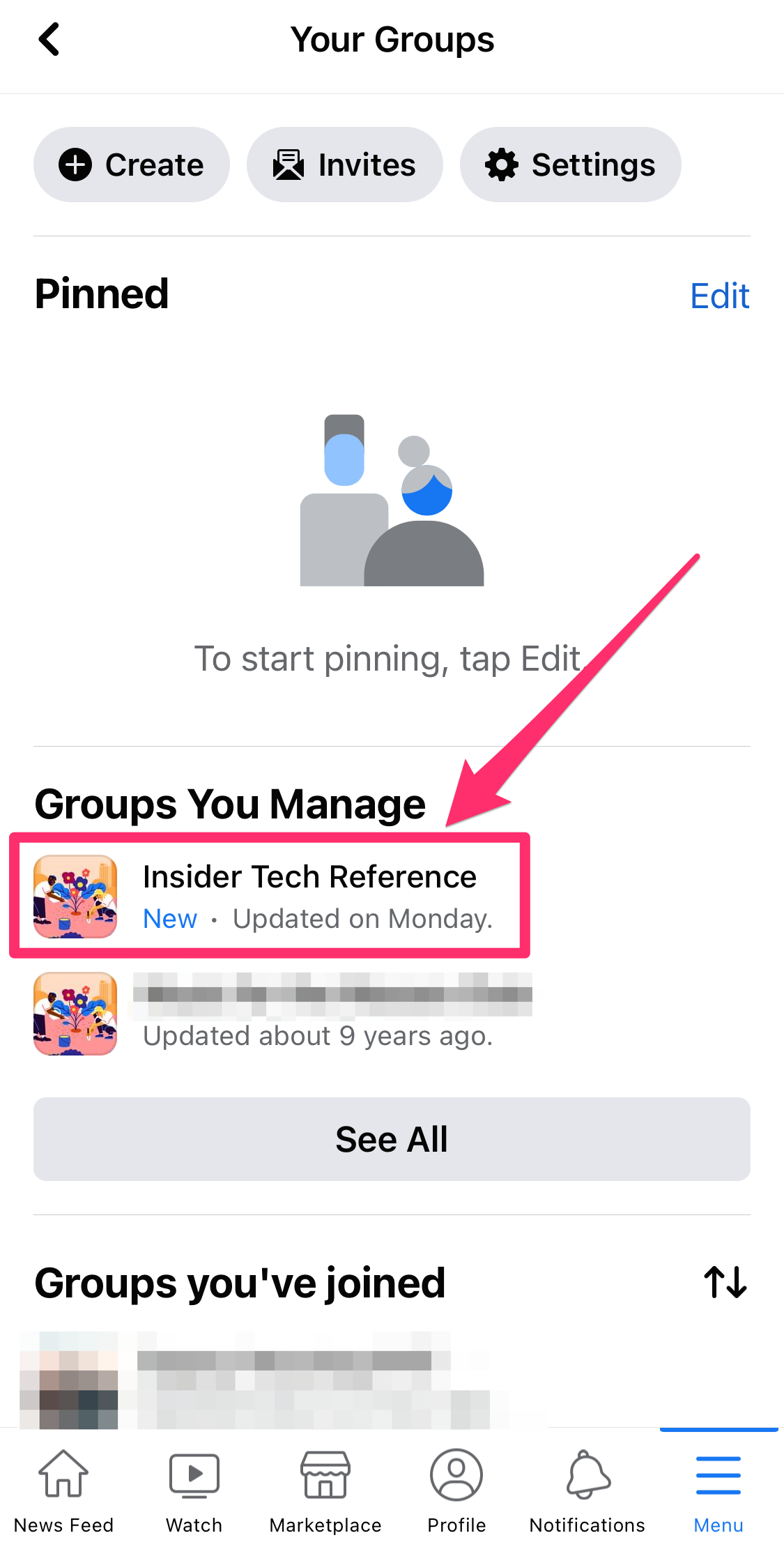
Grace Eliza Goodwin/Insider
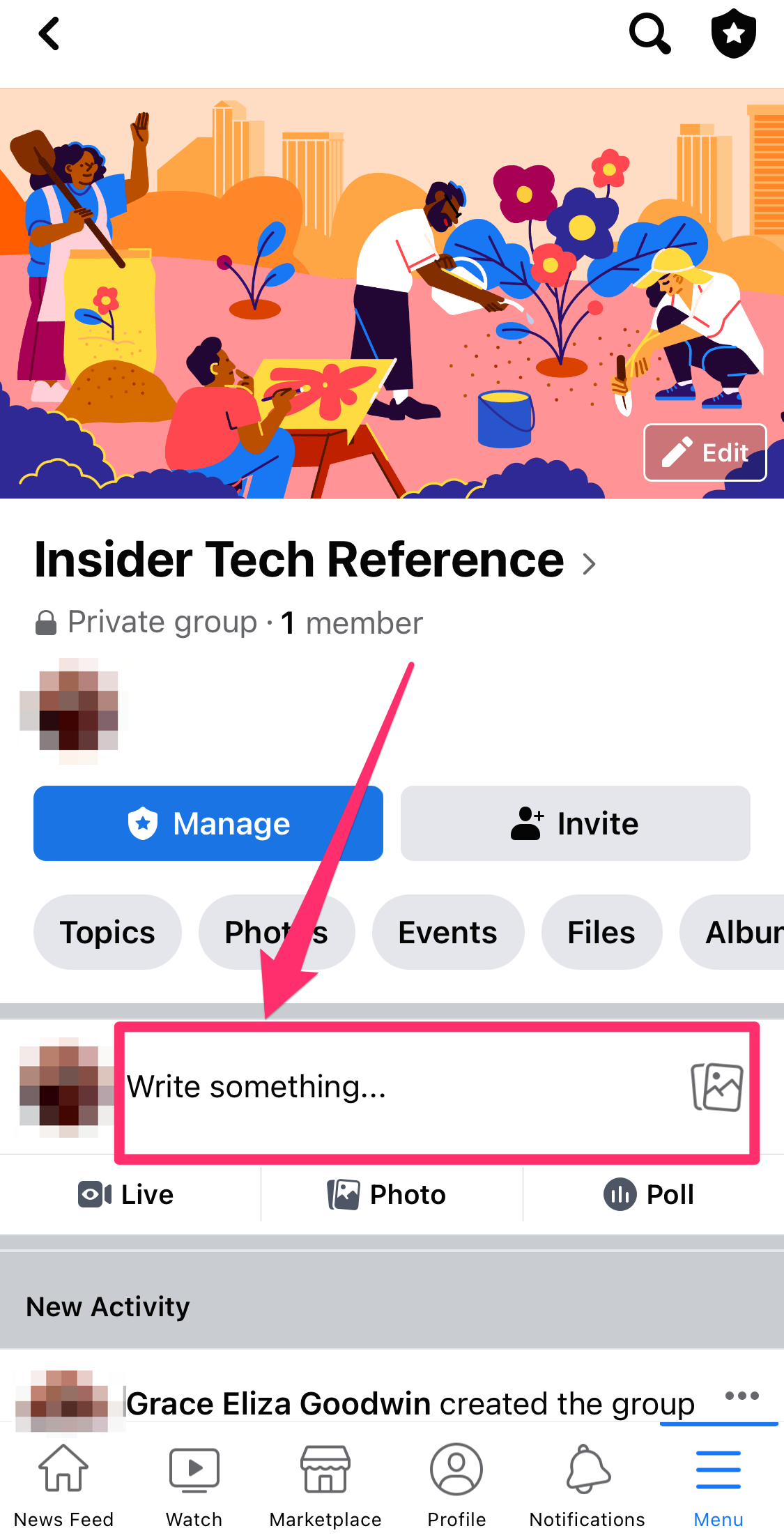
6. Tap the Write something… textbox in the center of the page.
Grace Eliza Goodwin/Insider
7. In the pop-up, write your post's text in the Create a post… section. If you wish, you can customize your post with photos, videos, and more by selecting an option in the swipe-up menu at the bottom.
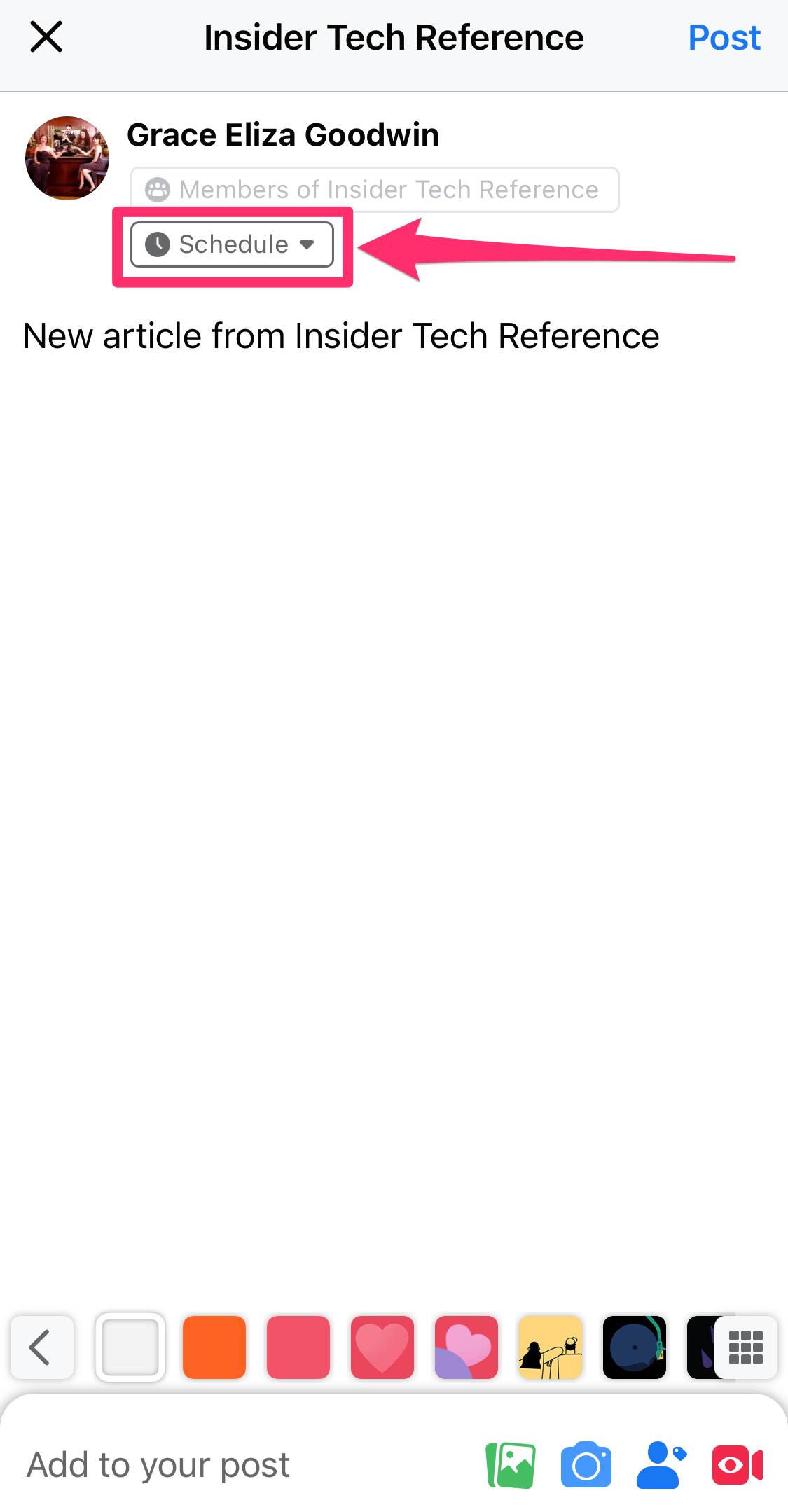
8. Once you've written and customized your post, tap Schedule underneath your profile name at the top of the post draft.
Grace Eliza Goodwin/Insider
9. Choose a date and time and hit Save in the top-right corner.

Grace Eliza Goodwin/Insider
10. Review the details of your scheduled post and tap Post in the top-right corner.
To view and edit your scheduled post, tap the icon of a badge with a star inside it in the top-right corner of your group page. Then, under Tool Shortcuts, select Scheduled Posts and tap the icon of three horizontal dots beside your scheduled post.
Read the original article on Business Insider

----------------------------------------------
By: [email protected] (Eva Recinos,Grace Eliza Goodwin)
Title: How to schedule a post on your Facebook page or group
Sourced From: feedproxy.google.com/~r/businessinsider/politics/~3/6x1Arc09M3M/how-to-schedule-a-post-on-facebook
Published Date: Tue, 13 Jul 2021 18:43:00 +0000
Did you miss our previous article...
https://conservativedailytimes.com/us-politics/first-lady-jill-biden-to-attend-opening-ceremony-of-summer-olympics-in-tokyo-next-week